Configuring Shipping Defaults
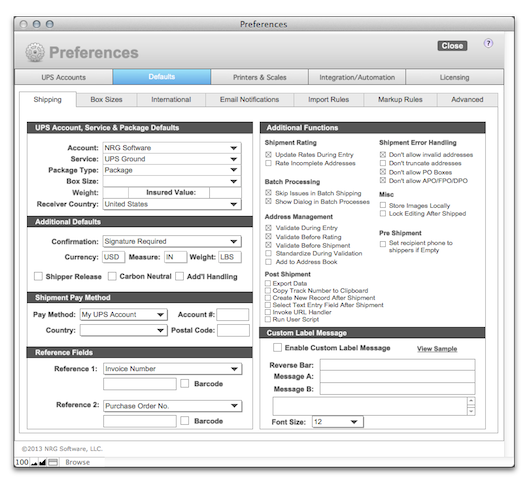
Once you have completed UPS account setup, you can adjust the default shipping values and label output settings by choosing Defaults within the Preferences layout.
SHIPPING PREFS
Shipment defaults can help you speed up shipment creation. Default Settings include everything from shipping account, service and package type - to default weights and delivery confirmation.
AUTOMATION
Automation defaults can be configured for imports, integration and setting actions pre and post shipment within the software.
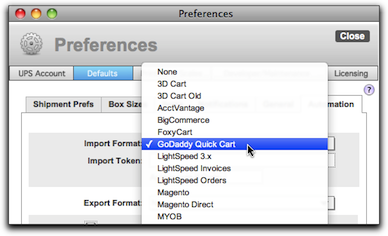
Import Format - There are a number of pre-configurated imports to allow you to import shipping data. Simply select the one you would use the most and this will set the default file type when you click on the "Import" icon on the main Shipping Screen and the Shipping List.
Import Token - If importing PayPal IPN, this is the email address where PayPal notifications are sent.
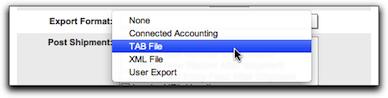
Export Format - This is the default export format when exporting shipment information.
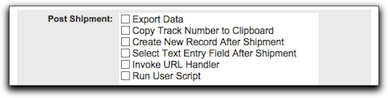
Post Shipment - Check the options related to your integration or shipping preferences.
- Export data - check this box and it will export the shipment data to the application NRGship application directory
- Copy Track Number to Clipboard - Puts the tracking number on your clipboard to easily paste onto order records.
- Create New Record After Shipment - Automatically creates a new ship record once you've shipped.
- Invoke URL handler - Invokes the specified URL (see below)
- Run user script - For FM users, you can call a custom script in the data file.
Order URL List and Order URL Detail - For NRG Web import, these are the URL's which will return an order list or order detail.
URL Handler - This is the URL that is invoked when you select "Invoke URL Handler" with using the Post Shipment option above.
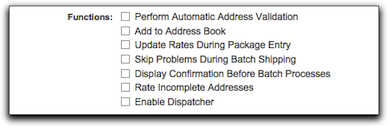
Functions - The following functions allow you to manage behavior in the shipment creation process.
- Perform Automatic Address Validation - US addresses are validated using UPS Address validation prior to shipping. This feature can be toggled on and off here.
- Update Rates During Package Entry - Rates are updated automatically during package entry.
- Skip Problems During Batch Shipping - If there is an issue with a ship record, it will skip and complete the batch process without halting the process.
- Display Confirmation Before Batch Processes - This displays dialog before running batch processes.
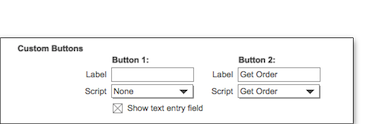
Custom Buttons - Integration modifications for PayPal IPN, NRG Web import, AcctVantage and Custom FileMaker.
Default Folder - This default folder is used for AcctVantage integration.
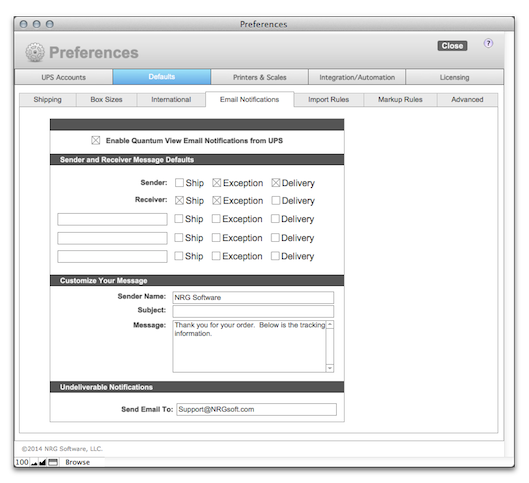
EMAIL NOTIFICATIONS
You can set up email notifications for shipment, delivery and for any exceptions. You must have a sender email as part of the shipping address to allow for recipient notifications.
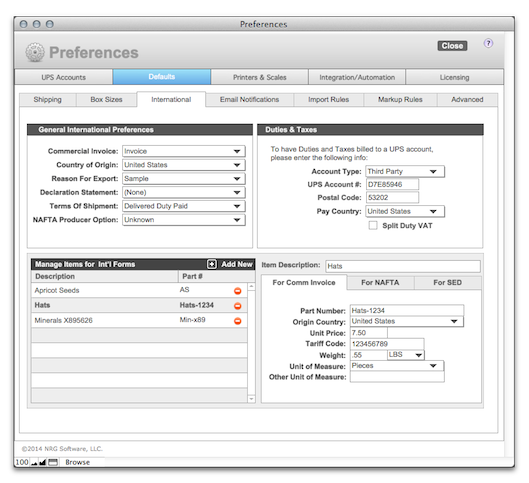
ITEMS
If you ship the same products internationally on a regular basis you'll want to add the product details to save time as you prepare international shipments.
BOX SIZES
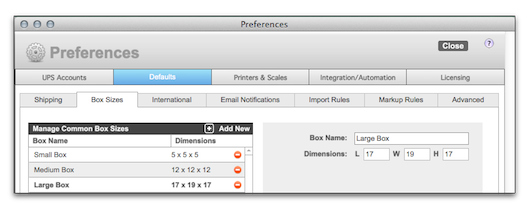
If you ship with the same box sizes on a regular basis and dimensional weight is a factor in your shipping rates, you'll want to add these defaults to save time as you prepare your shipments.